
[Guide] How to Build a Free Backlink Monitor with Google Sheets (No Paid Tools Required)
Building high-quality backlinks is a tough, essential part of SEO. But what’s even more frustrating than building them? Losing them without even noticing. While many paid tools can monitor your backlink profile, their monthly costs can add up, especially for startups and freelancers. As a great free alternative, I also want to mention that you can use the RobotAlp Keyword Monitoring tool to monitor up to 20 backlinks for free.
What if you could build your own automated backlink monitor for free?
We came across a brilliant, practical guide on the Blackhatworld forums by a user named @pankajjangir and decided to create a clear, step-by-step version for the Shub community. With this guide, you can create a system that automatically checks your most important backlinks and alerts you if one goes missing.

Let's get started.
Step 1: Create a New Google Sheet
First, you need a place to list your backlinks. The easiest way is to create a new, blank Google Sheet.
You can do this by navigating to your Google Drive and clicking New > Google Sheets > Blank spreadsheet, or by simply typing sheets.new into your browser's address bar.
Give your new sheet a name, like "Backlink Monitor."

Step 2: Set Up Your Headers
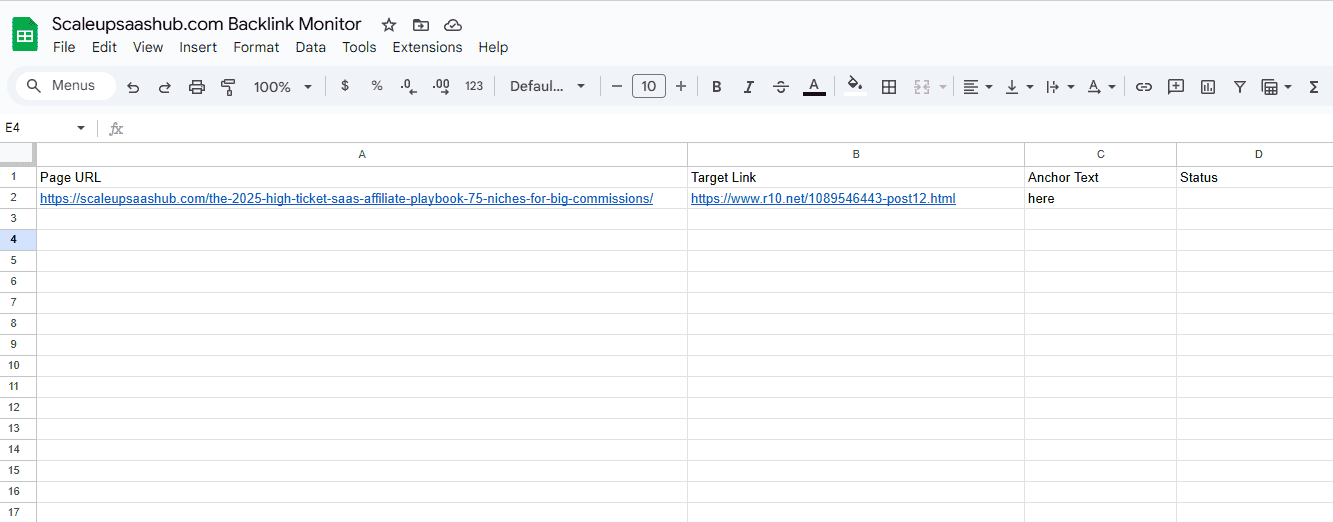
In the first row of your sheet, you'll need to create five specific headers in columns A through E. This structure is essential for the script to work correctly.
A1: Page URL (The page on your site that has the backlink)
B1: Target Link (The external page where your backlink should exist)
C1: Anchor Text (Optional, the text used for the link)
D1: Status (This will be automatically updated by our script)
E1: Last Checked (This will also be updated automatically)

Step 3: Add Your Backlinks to Monitor
Starting from the second row, fill in the list of backlinks you want to monitor. Add the URL of your page in the "Page URL" column and the URL of the page linking to you in the "Target Link" column.
Step 4: Open the Apps Script Editor
This is where the magic happens. We'll add a script to this sheet to automate the checking process.
From the top menu of your Google Sheet, click on Extensions > Apps Script.

Step 5: Get the Script Code
A new tab will open with the Apps Script editor. You'll see a file named Code.gs. Delete any existing code in that file.
function checkBacklinks() {
  var sheet = SpreadsheetApp.getActiveSpreadsheet().getSheetByName("Sheet1"); // Make sure your sheet name is "Sheet1" or update it here.
  var dataRange = sheet.getDataRange().getValues();
  var statuses = [];
  var emailAddress = "your-email@gmail.com"; // <-- IMPORTANT: CHANGE THIS
  var lostLinks = [];

  for (var i = 1; i < dataRange.length; i++) { // Start from row 2
    var pageUrl = dataRange[i][0];
    var targetLink = dataRange[i][1];
    var statusCell = sheet.getRange(i + 1, 4);
    var lastCheckedCell = sheet.getRange(i + 1, 5);

    if (!pageUrl || !targetLink) {
      statusCell.setValue("Missing URL or Link");
      lastCheckedCell.setValue(new Date());
      continue;
    }

    try {
      var response = UrlFetchApp.fetch(targetLink, { muteHttpExceptions: true });
      var content = response.getContentText();

      if (content.indexOf(pageUrl) !== -1) {
        statusCell.setValue("Live");
      } else {
        statusCell.setValue("Lost");
        lostLinks.push("Link to " + pageUrl + " was lost on " + targetLink);
      }
    } catch (e) {
      statusCell.setValue("Error: " + e.message);
    }
    lastCheckedCell.setValue(new Date());
  }

  if (lostLinks.length > 0) {
    MailApp.sendEmail(emailAddress, "Backlink Monitor Alert: Links Lost!", lostLinks.join("\n"));
  }
}
Step 6: Paste the Script
Paste the following script code into the Code.gs code box. Make sure to update your-email@gmail.com to the email address where you want to receive the alerts.
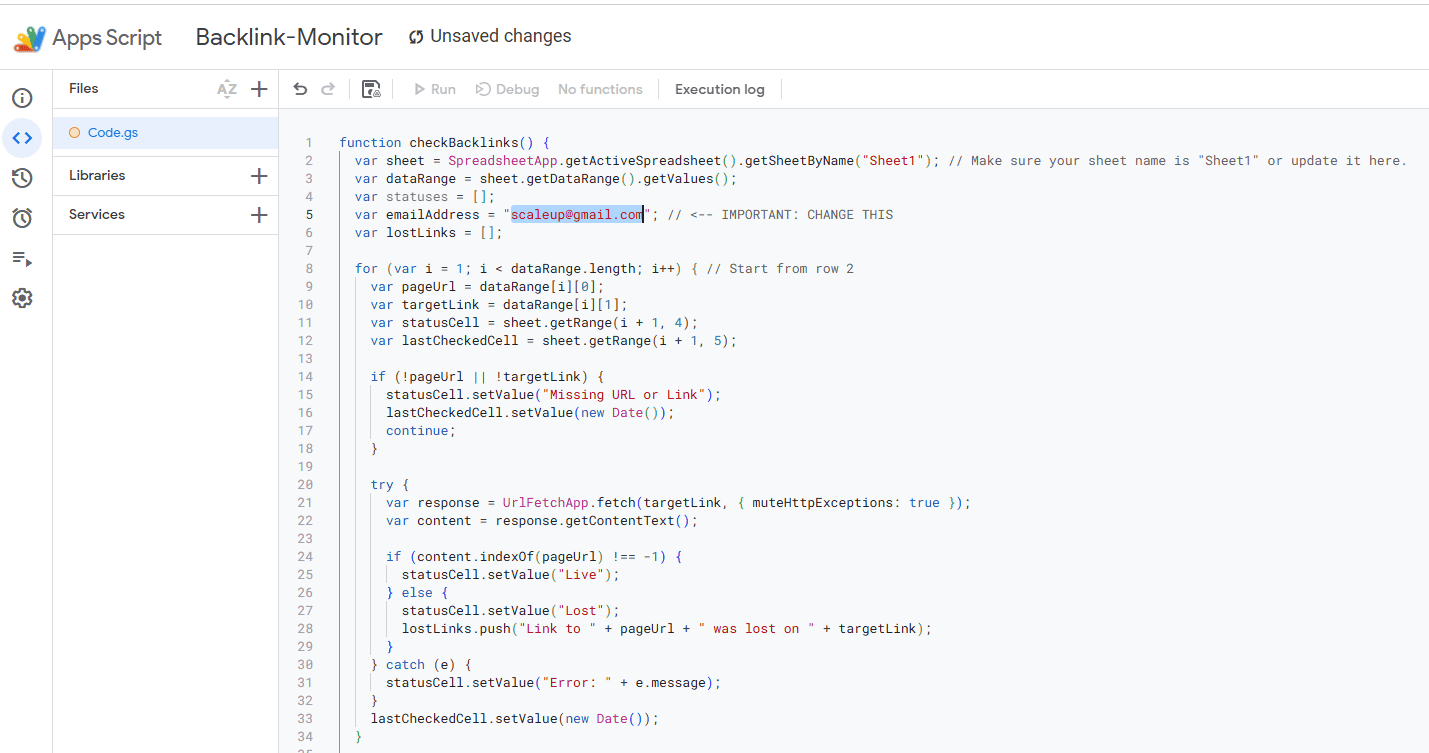
Click the Save icon (Disk) to save your project.
Step 7: Go to Triggers
Now, we need to tell the script to run automatically so you don't have to do it manually.
In the Apps Script editor, click on the Triggers icon (it looks like a clock) in the left-hand sidebar.
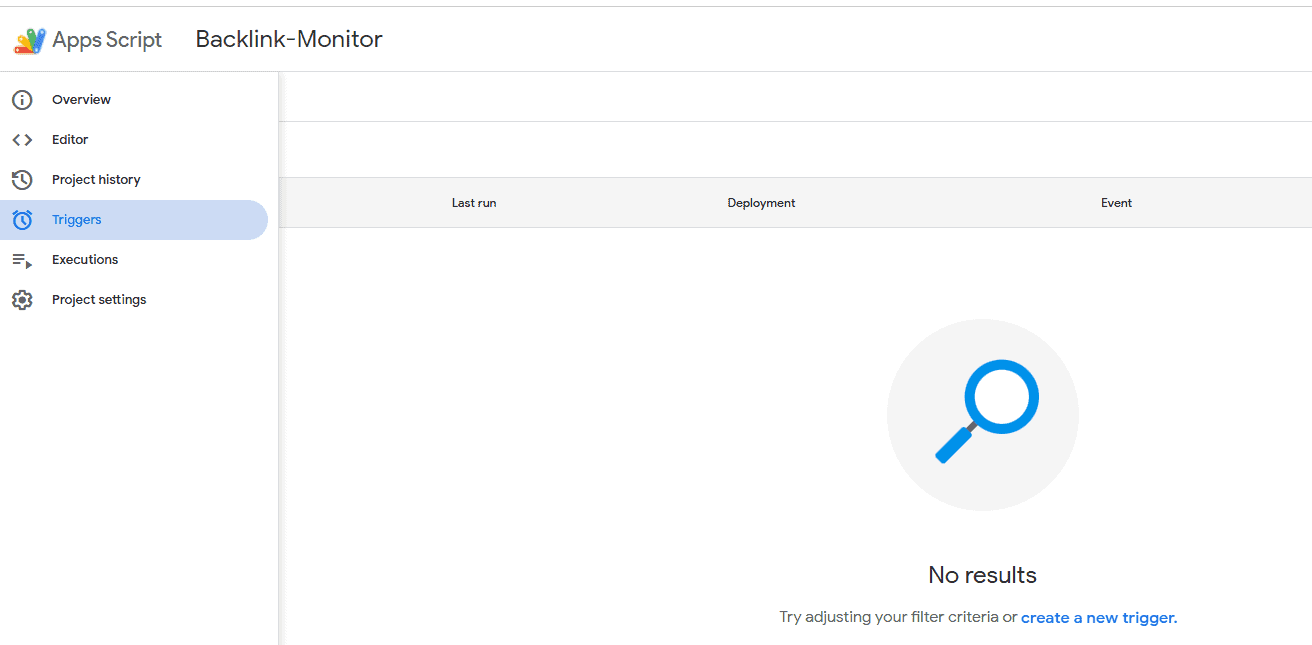
tep 8: Add a New Trigger
On the Triggers page, click the + Add Trigger button in the bottom right corner.
Step 9: Configure the Trigger Settings
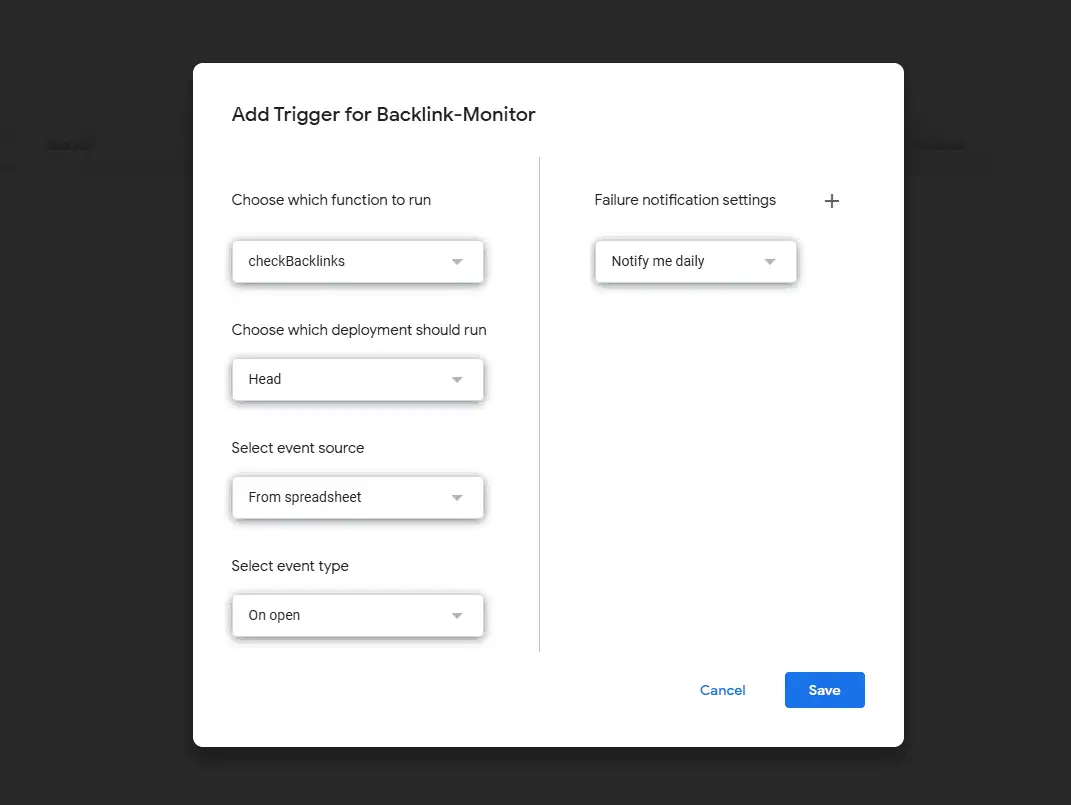
A popup will appear. Configure the settings to match the following to have the script run once a day.
- Choose which function to run:
checkBacklinks - Choose which deployment should run:
Head - Select event source:
Time-driven - Select type of time based trigger:
Day timer - Select time of day:
Midnight to 1am(or any time you prefer)
Click the Save button.

Step 10: Authorize the Script
Google will now ask you to authorize the script to run. This is a standard security step.
- A popup will appear. Choose your Google account.
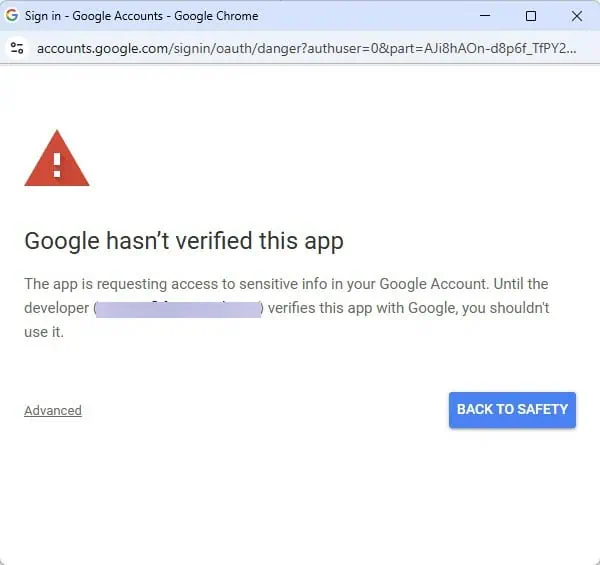
- You will likely see a warning that says "Google hasn't verified this app." This is normal for your own scripts. Click on Advanced, and then click on "Go to Backlink Monitor (unsafe)".
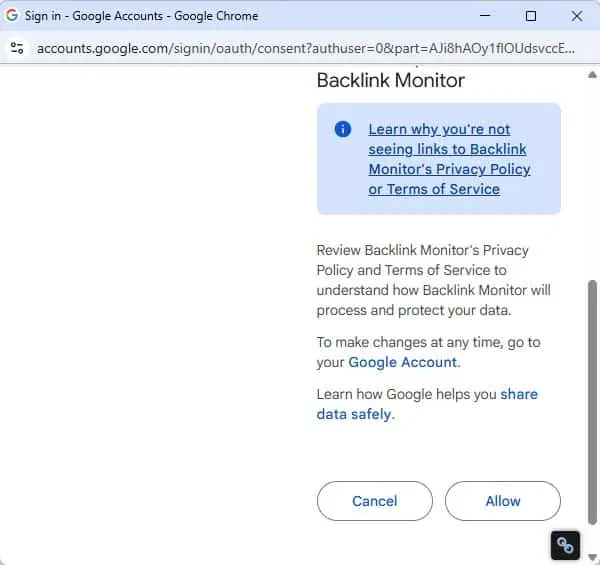
- On the next screen, scroll down and click the Allow button to grant the necessary permissions.
Step 11: Run and Test the Script
Your trigger is set, but let's run the script once manually to make sure everything is working correctly.
Go back to the Editor (the <> icon). Make sure the checkBacklinks function is selected, and click the ▶ Run button at the top.
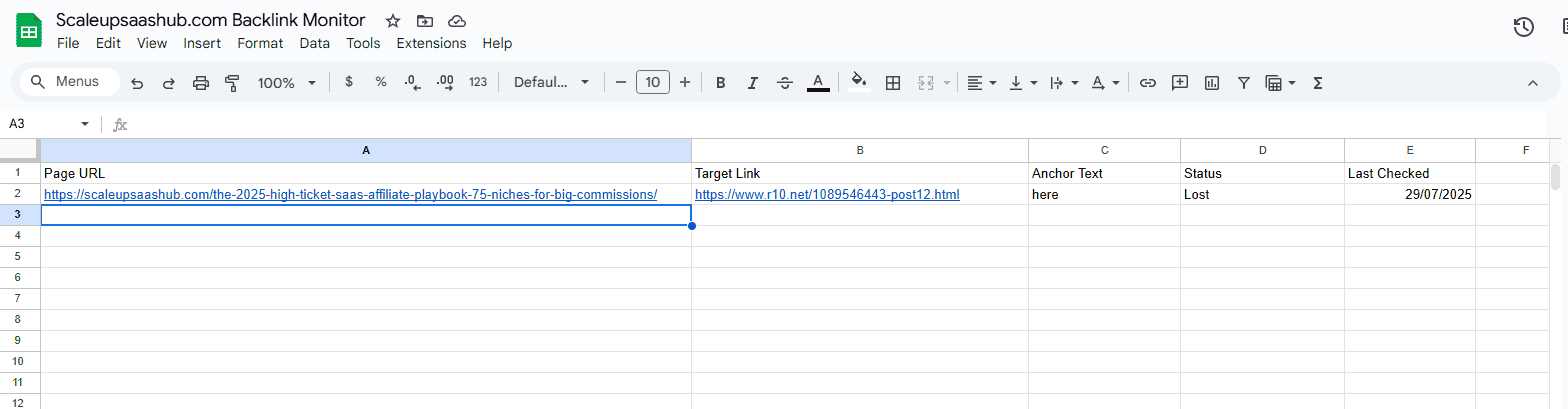
You can check the Execution log at the bottom of the screen to see the progress. If it runs successfully, you'll see "Execution started" and "Execution completed." Go back to your Google Sheet, and you should see the "Status" and "Last Checked" columns filled in!
Conclusion & Our Take
You now have a fully automated, 100% free backlink monitor that will check your links every day and email you if any go missing.
This DIY solution is perfect for startups, freelancers, and anyone managing a small-to-medium-sized backlink portfolio. It allows you to keep an eye on your most valuable links without adding another monthly subscription to your budget. While it may not have the advanced features of a paid tool like Ahrefs or Semrush, for core monitoring, it's an incredibly powerful and efficient system.